Original scan surfaces
Alignment changes the position of the arches, not the shape of the scanned teeth.
Loading
Preparing the page.

Align the upper and lower scans, then inspect where they meet.
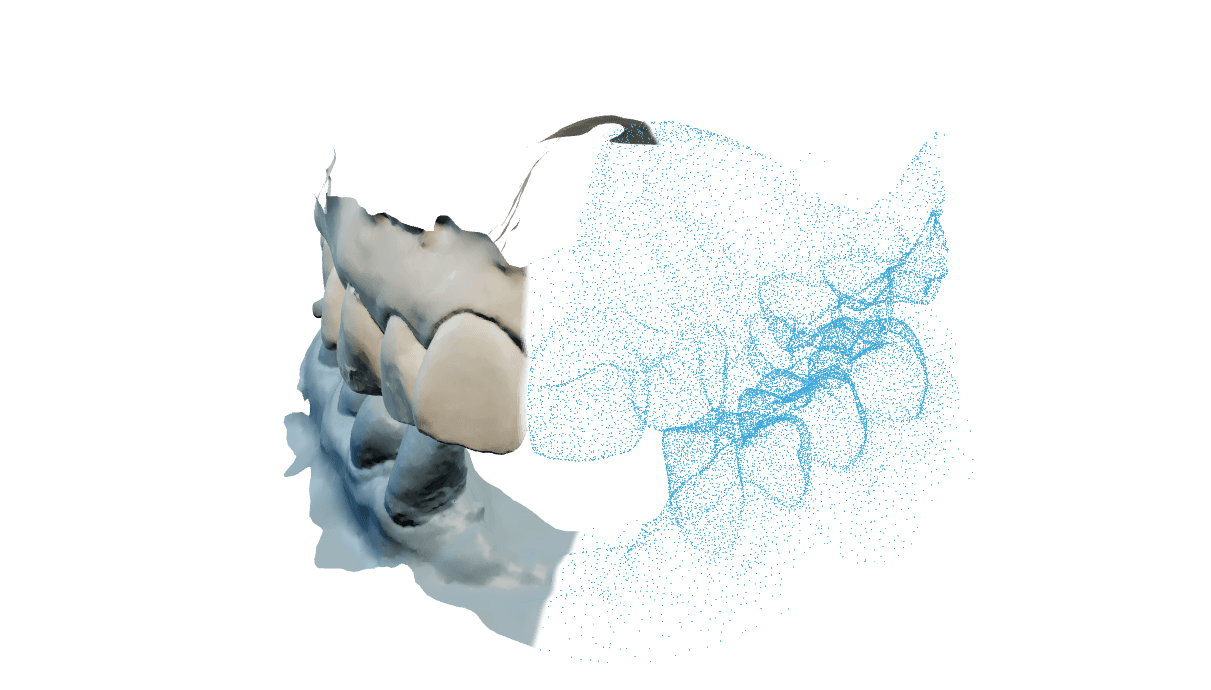
Review the alignment and contact map before accepting the result.
Open appUpload the two arches and start the alignment. Processing runs on the server. Return to the case to inspect the relationship between the scans in 3D.
File requirements and workflow guideReview the contact map on the aligned scans. Rotate the model and inspect individual areas before accepting the alignment.
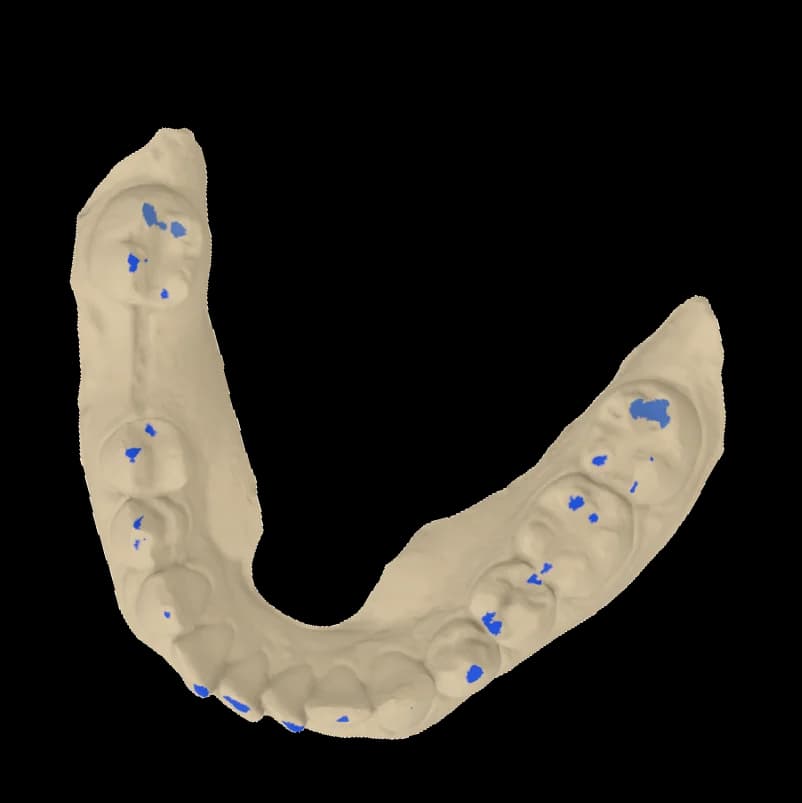
Check the alignment before designing on it or using it clinically. Automatic alignment is not a diagnosis.
Use two separate full-arch scans from the same session. Both inputs must be the same source type: two mesh files or two scanner packages.
The order is saved before upload finishes. Once processing starts, you can close the tab and return to the case later.
Review the aligned pair and penetration measurements. Use Cut view and the articulator controls to inspect areas hidden by the outer surfaces.
Download the aligned scans after review, or start a print-model work order in the same case.
Open OccluTrace from the project menu. The Connector picks up the upper and lower scans, so you do not have to find and upload them again.
Choose OccluTrace in the project menu. The Connector finds the upper and lower scans.
Check the scan pair, exclude markers if needed and start processing.
Inspect the aligned scans and save the result beside the source files.
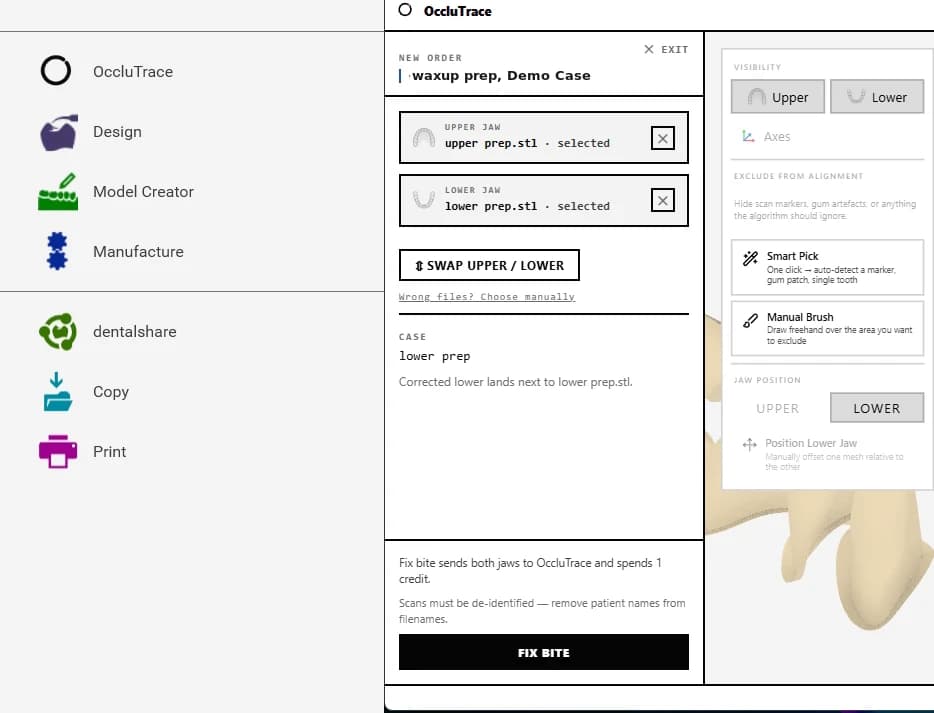 Review the result
Open OccluTrace from the project menu. The Connector picks up the upper and lower scans, so you do not have to find and upload them again.
Choose OccluTrace in the project menu. The Connector finds the upper and lower scans.
Check the scan pair, exclude markers if needed and start processing.
Inspect the aligned scans and save the result beside the source files.
Get the Windows ConnectorAlignment changes the position of the arches, not the shape of the scanned teeth.
Inspect where the arches meet, including intersections that need attention.
Use the aligned scans for a print-model work order without creating another case.
No. Alignment repositions the arches without reshaping the scanned teeth.
Upper and lower full-arch scans from the same session. Use two mesh files or two scanner packages, not one of each.
No. You can upload the scans in the browser. The Connector is an optional way to send scans directly from an exocad project on Windows.
Yes, once the upload has finished and processing has started. Return to the case to inspect the result.
Inspect the relationship between the arches and the contact map in 3D. Automatic alignment still needs your clinical review.
Yes. Start a print-model work order in the same case after reviewing the alignment.